Remove Google Flow Visible Watermarks: Image & Video Guide
Need to remove a visible Google Flow watermark from AI media you created yourself? This guide explains the VeoBulk Desktop workflow for images and videos, how to inspect the restored area, and how to keep larger batches stable. Use it only for content you own or have permission to edit.

Visible watermarks and SynthID are different
A visible watermark is a logo or text overlay that you can see in the frame. SynthID is an invisible identifier embedded by Google in AI-generated media. They are separate layers.
VeoBulk processes only the visible logo area in an image or video. It does not remove, disable, or interfere with SynthID. Google Flow documentation states that Veo and Imagen output includes invisible SynthID and that it should not be tampered with or removed.
When is visible watermark removal appropriate?
Process a logo only on media that you created, own, or have explicit permission to edit. Do not use the workflow to strip copyright notices, brand marks, or source information from someone else's work.
After processing a visible overlay, retain AI disclosure wherever a platform, client, or applicable rule requires it.
Why cropping or blurring may not work
Cropping a corner is fast, but it can remove part of the subject, break the aspect ratio, or eliminate useful copy space. Blurring or covering the logo often creates an obvious patch on textured backgrounds.
Restoring the area requires matching nearby color, texture, and edges. Flat sky or wall areas are generally easier than hair, hands, typography, and moving objects.
Process the visible logo with VeoBulk Desktop
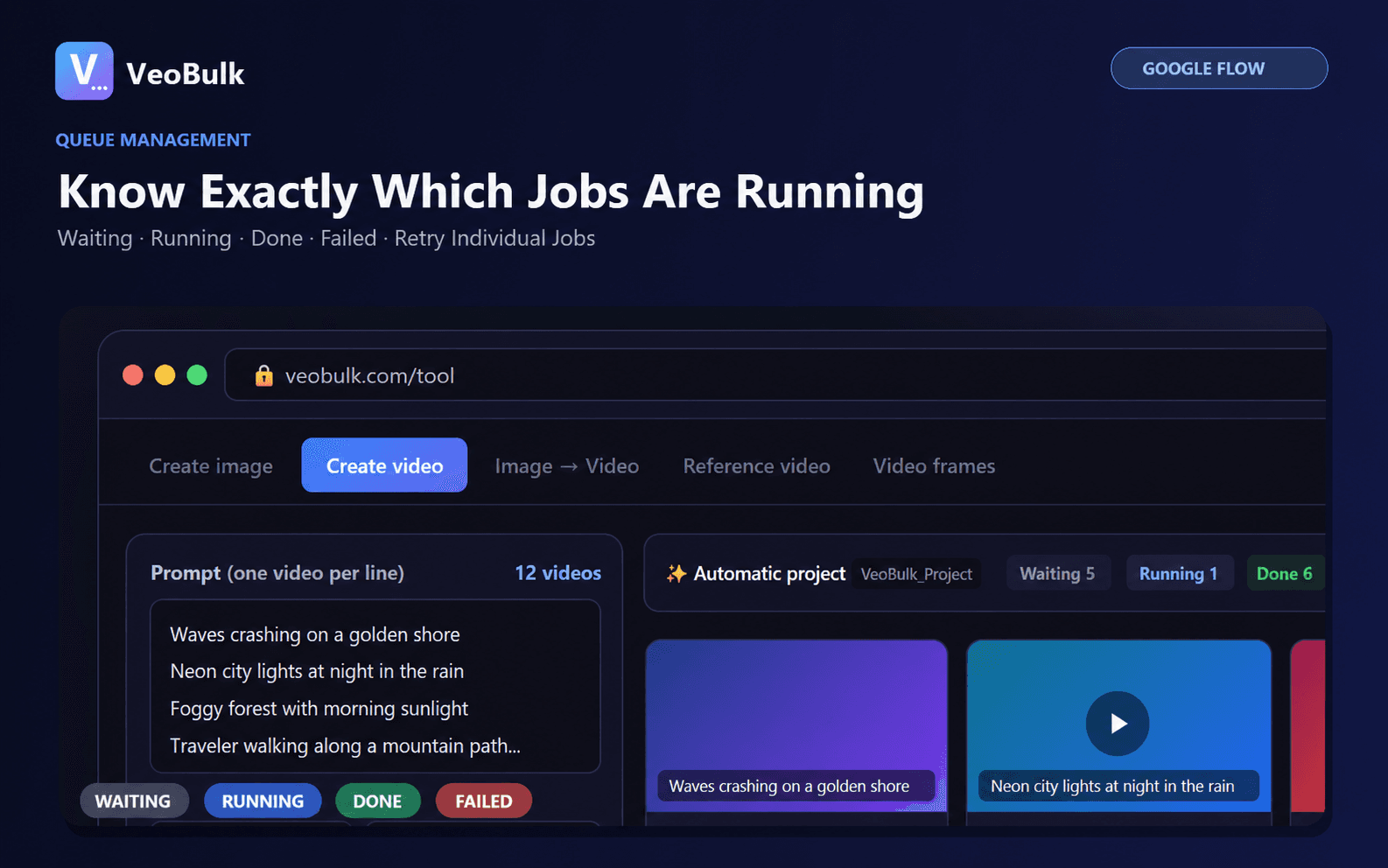
1. Open VeoBulk Desktop and select an image or video workflow for Google Flow. 2. Enable Remove Veo Logo before starting if you want post-processing to begin after the output downloads. 3. Select a project folder and test a small group. 4. Wait for both generation and logo processing to finish before closing the app. 5. Review the result at full size.
For files you already generated, work in manageable groups instead of loading an entire library at once. Keep original files in a separate folder for comparison and recovery.
Review image quality
Zoom into the former logo area and check three things: whether edges look blurred or repeated, whether texture matches the surrounding area, and whether details such as text, hands, or faces have changed.
Complex backgrounds may require another generation, a composition that places the logo over a simpler area, or manual retouching. Review representative samples before publishing a whole batch.
Review video quality
Watch the processed region throughout the full clip rather than checking one frame. Look for flicker, drifting color patches, distorted object edges, and texture changes between frames.
Compare the processed file with the original to confirm that motion, audio, and areas outside the logo region remain intact. A clip may look clean in its opening frame but reveal artifacts during movement.
Keep large Desktop batches stable
Generation and region restoration consume memory, CPU or GPU resources, and disk space. Start with moderate concurrency, keep sufficient storage free, and avoid running several other heavy applications during post-processing.
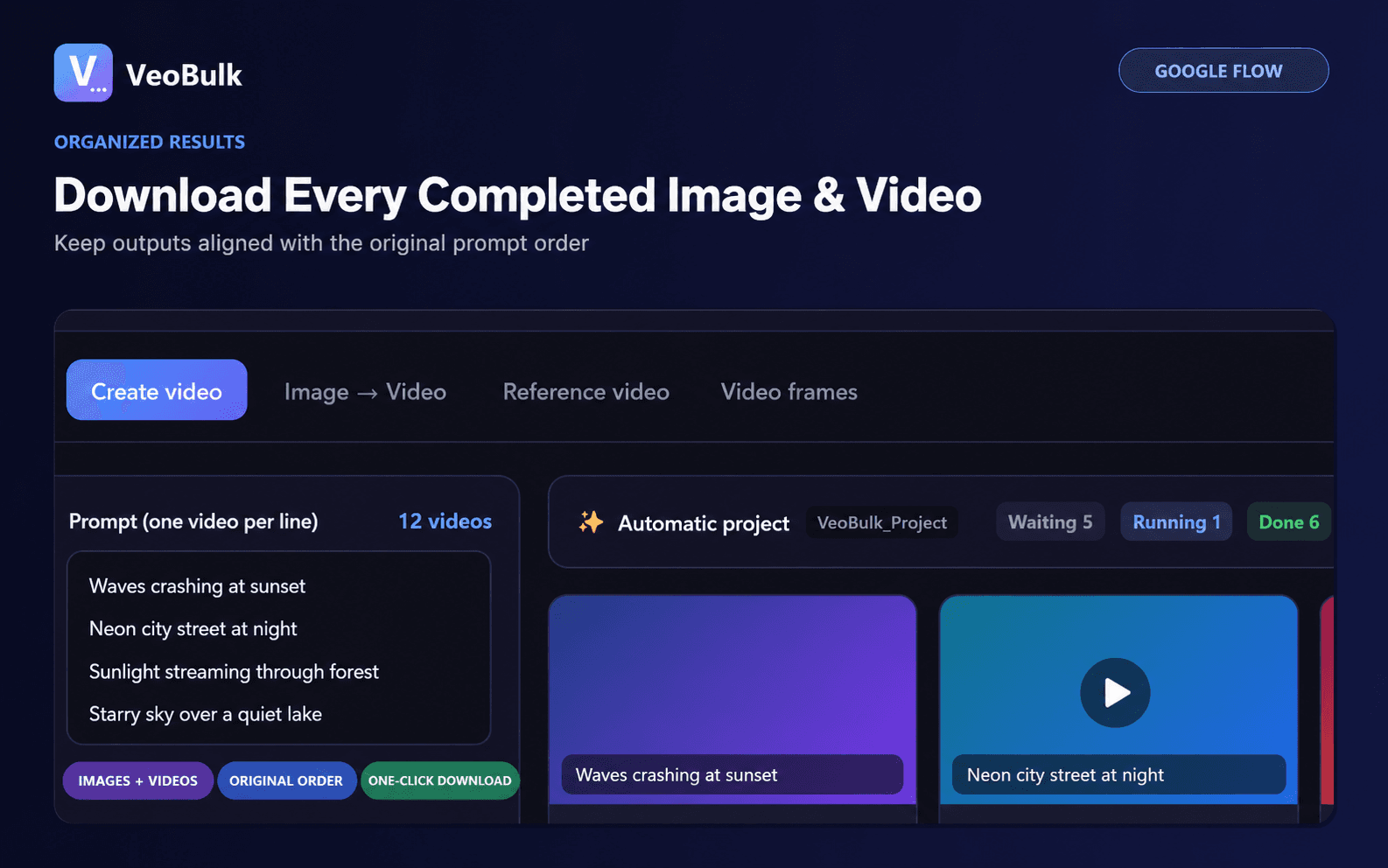
Split large projects into smaller batches and retry only failed files. If the app slows during logo processing, lower concurrency; faster generation does not help when the post-processing queue is overloaded.
Pre-publish checklist
Confirm your right to edit the media; preserve the originals; inspect the former logo area at full resolution; watch every video for flicker; disclose AI-generated content when required; and never claim that SynthID has been removed.
The goal is not to process the largest possible number of files at once. It is to produce clean, reviewable output that respects usage rights and platform requirements.
Related articles
Frequently asked questions
Does VeoBulk remove SynthID?
No. VeoBulk processes only the visible logo and does not remove, disable, or interfere with invisible SynthID.
Does every Google Flow tier show a visible watermark?
Google's current documentation says Free, Plus, and Pro outputs carry a visible watermark, while Ultra output may show one when local regulations require it.
Why can traces remain after processing?
Hair, text, hands, detailed textures, and fast movement are harder to restore than flat backgrounds, so each output should be reviewed.
Can I remove a watermark from someone else's media?
Only edit media you own or have explicit authorization from the rights holder to modify.
Ready to streamline your Google Flow workflow?
Install the VeoBulk Extension to manage prompts, queues, and results directly in Chrome.