How to Troubleshoot Google Flow Batch Queue Errors
When a long queue develops errors, restarting everything is rarely the best response. Identify whether the cause is the account, connection, device, or one job, then resume only safe work.

Pause and read the actual state
Pause the queue when several jobs fail in succession. Check Google Flow notices, sign-in state, and verification requests before retrying.
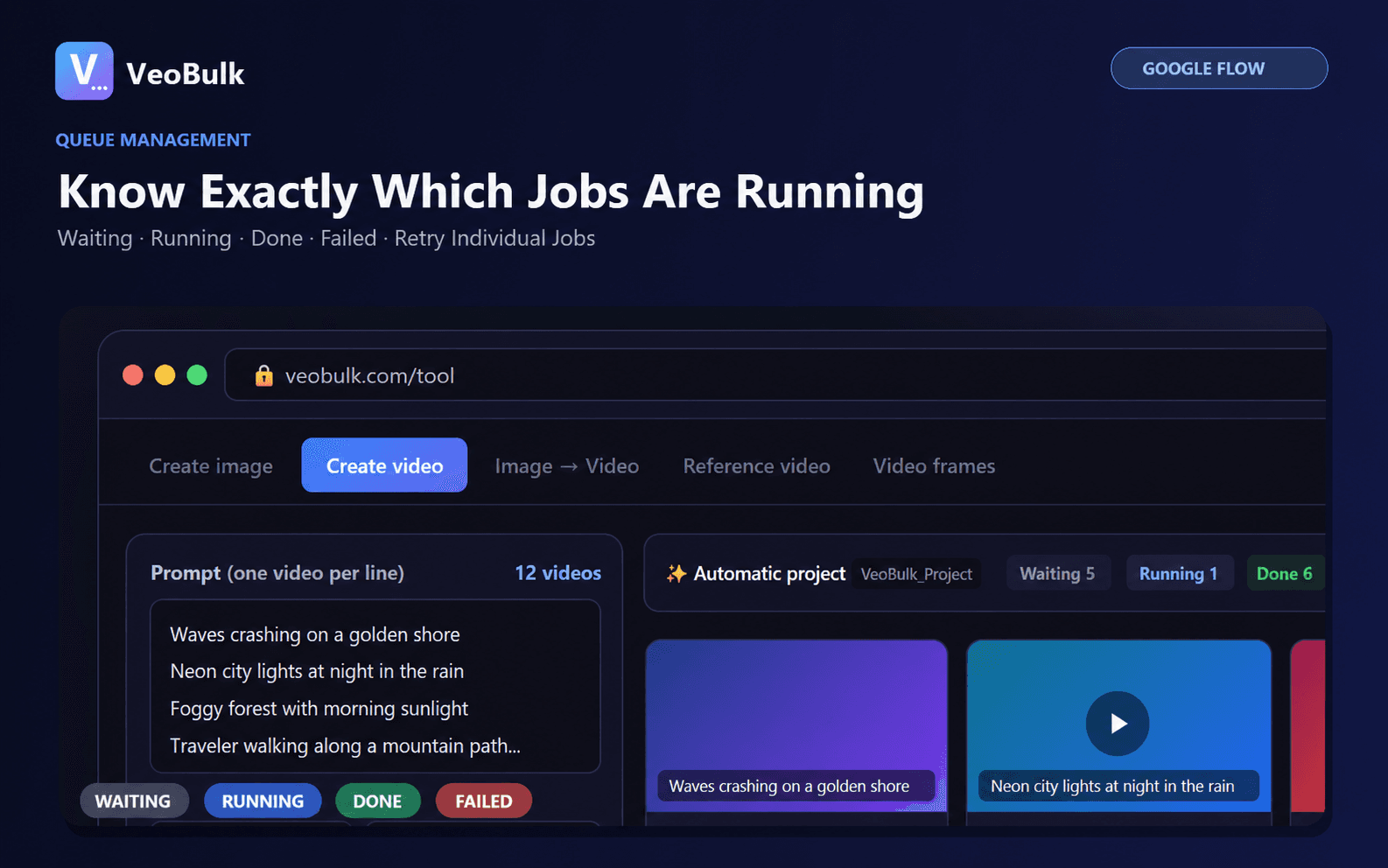
Separate waiting jobs from failed jobs so you do not submit duplicate generations.
Reduce load safely
Lower concurrency, close memory-heavy applications, and keep the network stable. Dividing a large run into smaller groups also makes recovery easier.
Avoid heavy post-processing while the computer is already close to its resource limit.
Handle timeouts and verification
Complete verification directly in the Flow window before resuming. A timeout does not always mean generation failed, so check for an output before retrying.
Retry only jobs that have no result to avoid duplicate files and unnecessary account usage.
Preflight checklist for large batches
Update VeoBulk, test a small group, confirm free disk space, and begin with moderate concurrency. Prevent the computer from sleeping during a long session.
At the end, compare prompt count, successful job count, and downloaded file count before closing the project.

Frequently asked questions
Should I restart the whole batch after one error?
No. Fix the cause and retry only the affected job.
Does a timeout always mean failure?
No. The result may arrive late; check Flow and the job status before resubmitting.
Is higher concurrency always faster?
No. Beyond device, connection, or account limits, retries can increase total completion time.
Ready to streamline your Google Flow workflow?
Install the VeoBulk Extension to manage prompts, queues, and results directly in Chrome.