How to Bulk Generate Images in Google Flow (Prompt Queue Guide)
Want to bulk generate images in Google Flow without entering every prompt manually? This guide shows how to turn a prepared prompt list into a controlled image queue, monitor each job, retry failures, and download an organized batch with the VeoBulk Extension or Desktop App.
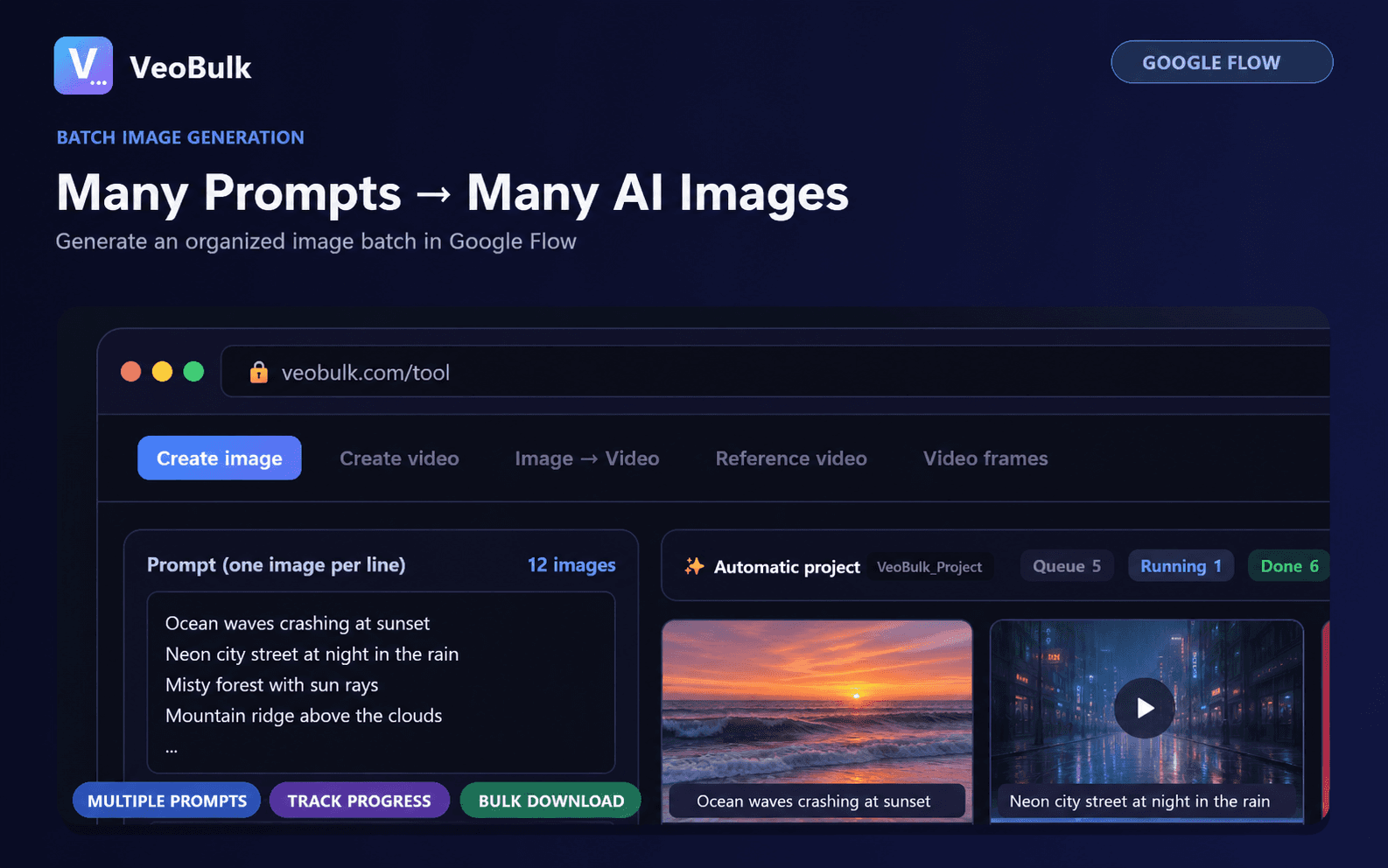
What does bulk image generation mean?
A reliable bulk workflow does more than submit every request at once. It reads a prompt list, queues individual jobs, controls concurrency, and records whether each image is waiting, running, completed, or needs attention.
VeoBulk works as an independent automation layer alongside Google Flow. Google Flow generates the images under your Google account; VeoBulk reduces repetitive actions and keeps prompts and results organized.
Prepare prompts before you run
Use one complete request per line. A repeatable structure can include subject, setting, lighting, camera angle, visual style, and aspect ratio. For a consistent character, preserve the identity description across prompts and change only the scene or action.
Number your scenes before importing them. A simple identifier makes it much easier to match downloaded files to a script or content plan.
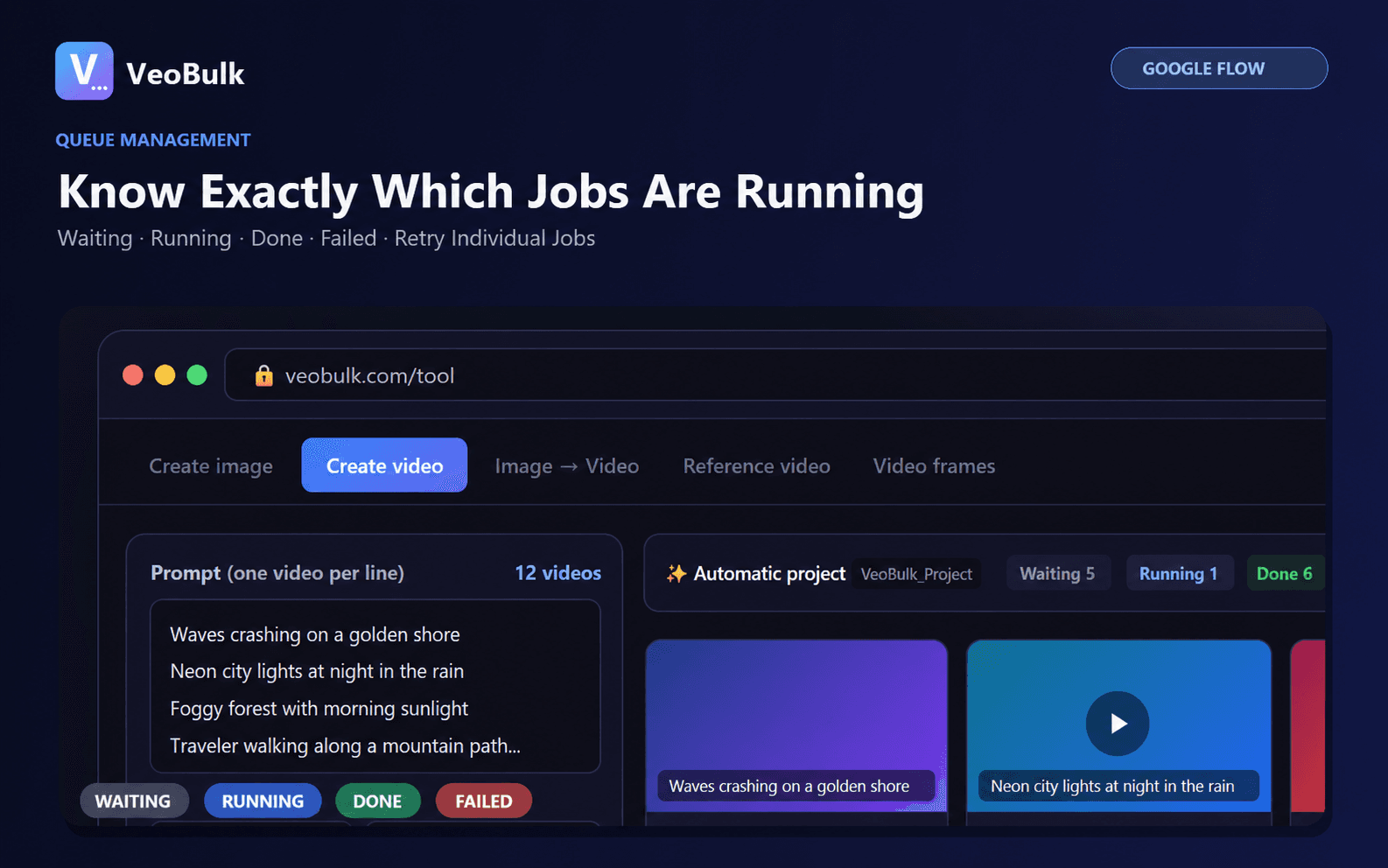
A six-step bulk workflow
1. Sign in to a Google account with access to Google Flow and open the project you want to use.
2. Open the VeoBulk Chrome Extension or Desktop App and select Text to Image.
3. Paste one prompt per line or import your prepared prompt file.
4. Select the model, aspect ratio, and a sensible concurrency level. Test a moderate setting before scaling up.
5. Start the queue and monitor waiting, active, completed, and failed jobs.
6. Review the output, retry only the images that need work, and download the approved batch into your project folder.
Reduce failures and wasted generations
Run two or three representative prompts before launching the full batch. Fixing the prompt pattern early can save substantial time and account credits.
Do not set concurrency beyond what your computer, connection, or account limits can sustain. If Google Flow requests verification or pauses activity, stop the queue, address the notice, and then continue.
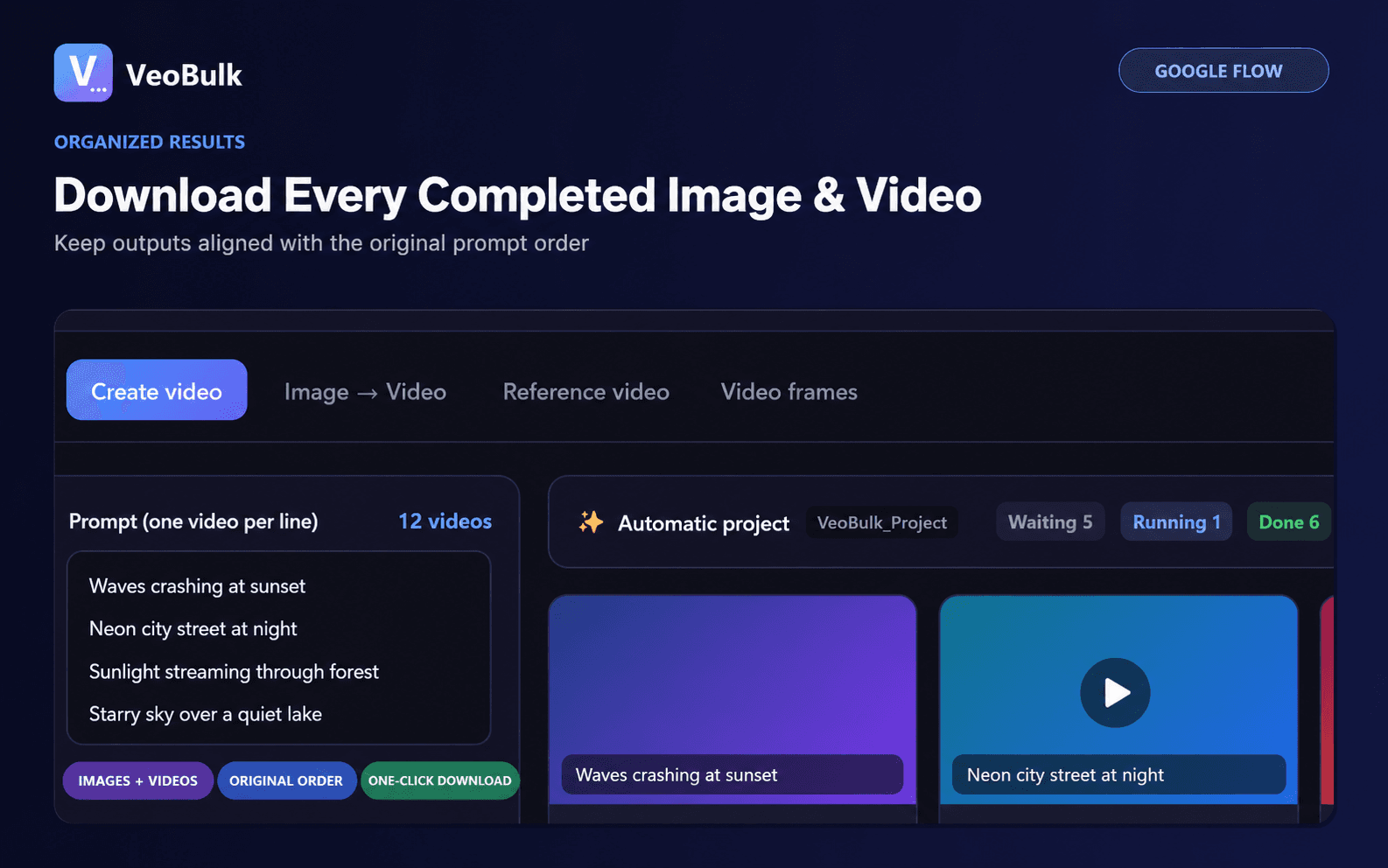
Organize output for larger projects
Save the source prompts with the images and use predictable names such as 001-opening-scene and 002-product-closeup. For team projects, track scene number, prompt, approval status, and output filename in a shared shot list.
Choose final images for their intended use, not only visual appeal. Ad creative may need clear copy space, while an image-to-video source should have a readable subject and composition that supports motion.
Related articles
Frequently asked questions
Does VeoBulk generate images instead of Google Flow?
No. Google Flow generates the images, while VeoBulk automates queue and workflow actions under your account.
Can I import prompts from a file?
Yes. You can prepare a prompt list and import it instead of entering prompts one at a time.
How many images should run at once?
Start with moderate concurrency and increase it only after confirming that your device, connection, and account remain stable.
Ready to streamline your Google Flow workflow?
Install the VeoBulk Extension to manage prompts, queues, and results directly in Chrome.