How to Auto-Download Google Flow Images and Videos in Organized Batches
Generation is only half the workflow. With dozens of images or clips, downloading each result and renaming it manually can take longer than producing the media.
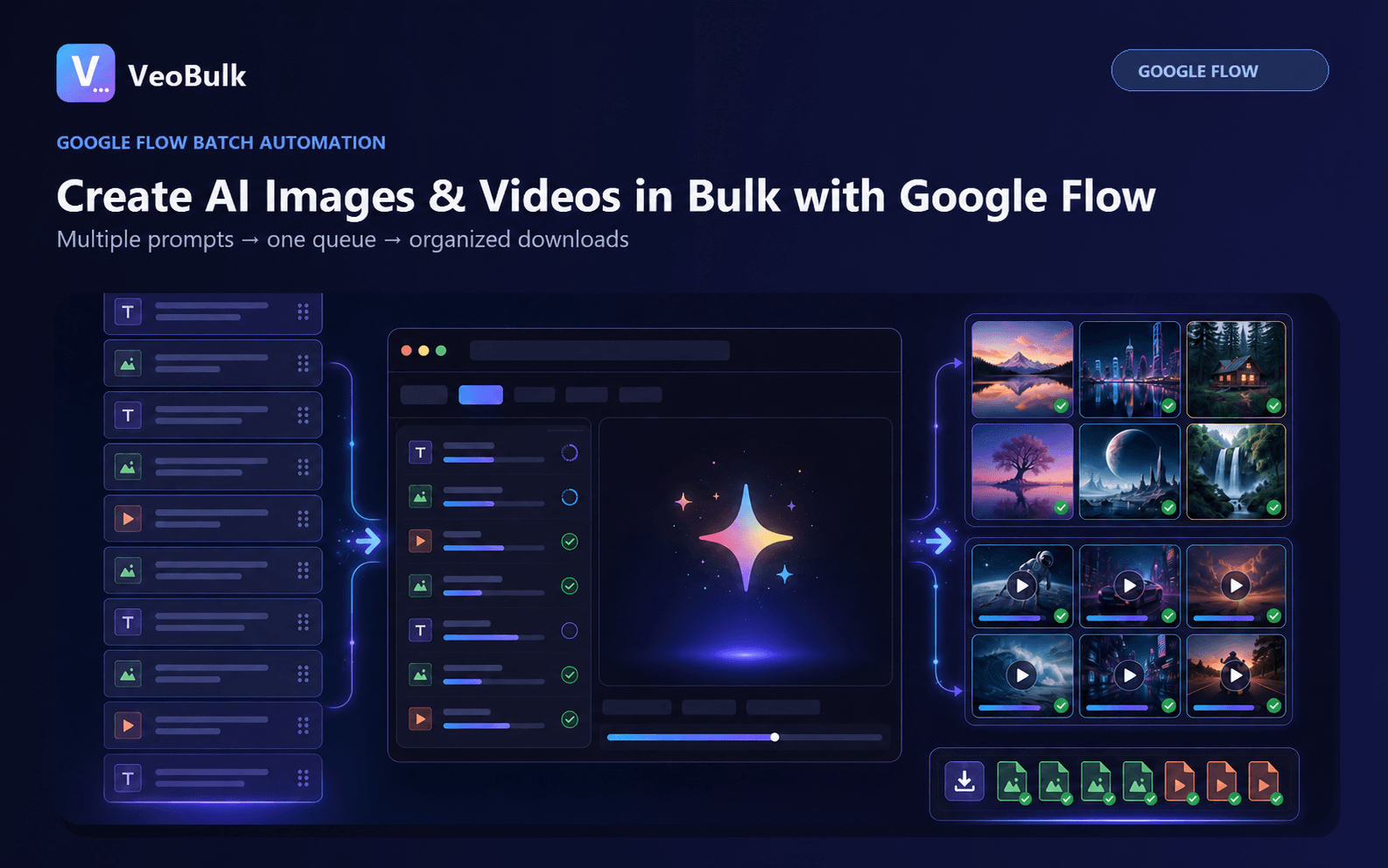
Why batch downloads become disorganized
Default filenames may not identify a prompt or shot, repeated sessions create duplicates, and results may arrive in a different order than submissions. Without a convention, editors must open every file to identify it.
Use shot IDs in prompts and filenames, then separate output folders by project or production date.
A safe result-download workflow
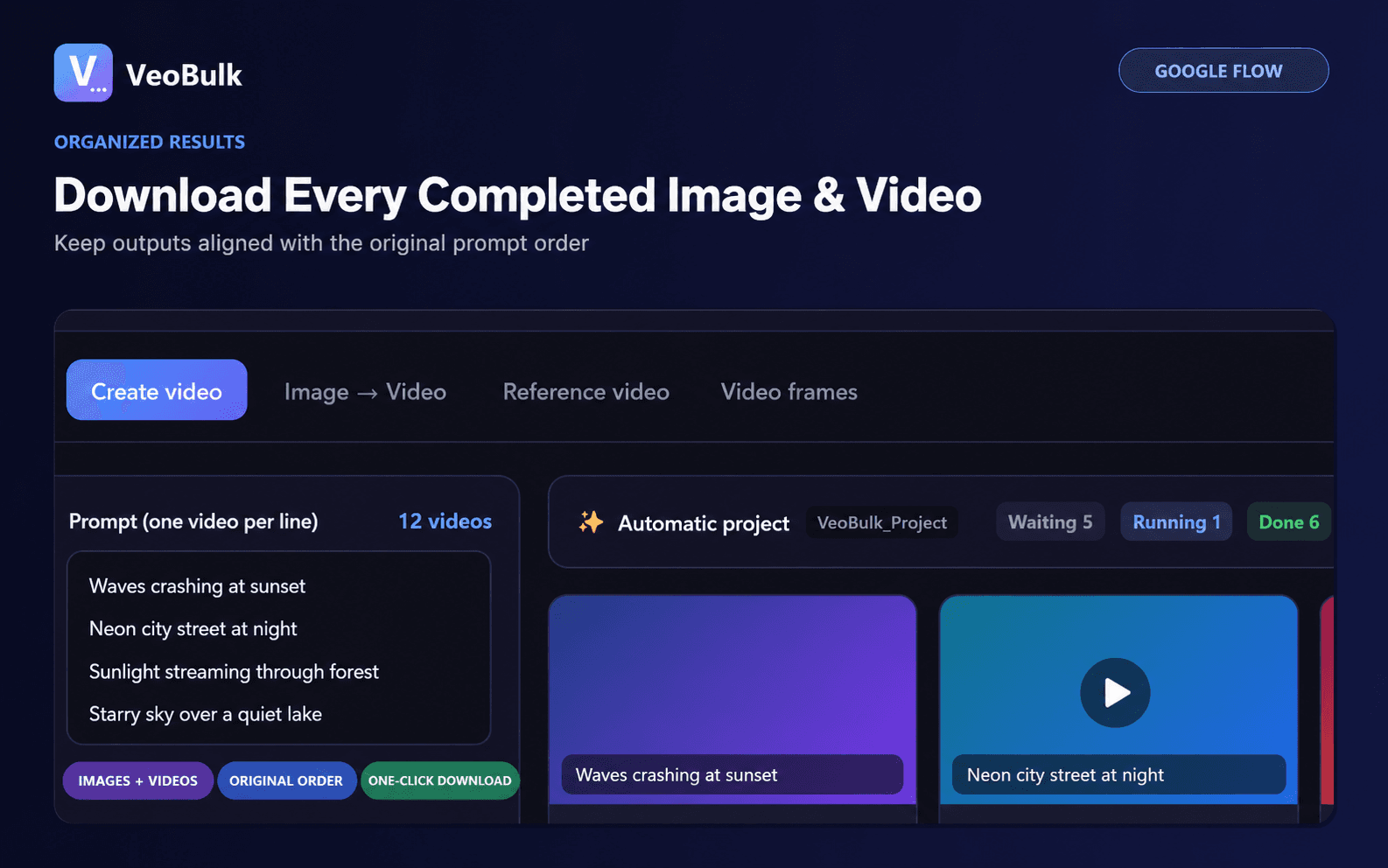
Wait for each job to complete, review its thumbnail, and download approved outputs. VeoBulk can ask Chrome to save files with organized names; the browser still enforces the user's download settings and permissions.
Keep the original prompt list or shot list next to the media folder so every result remains traceable.
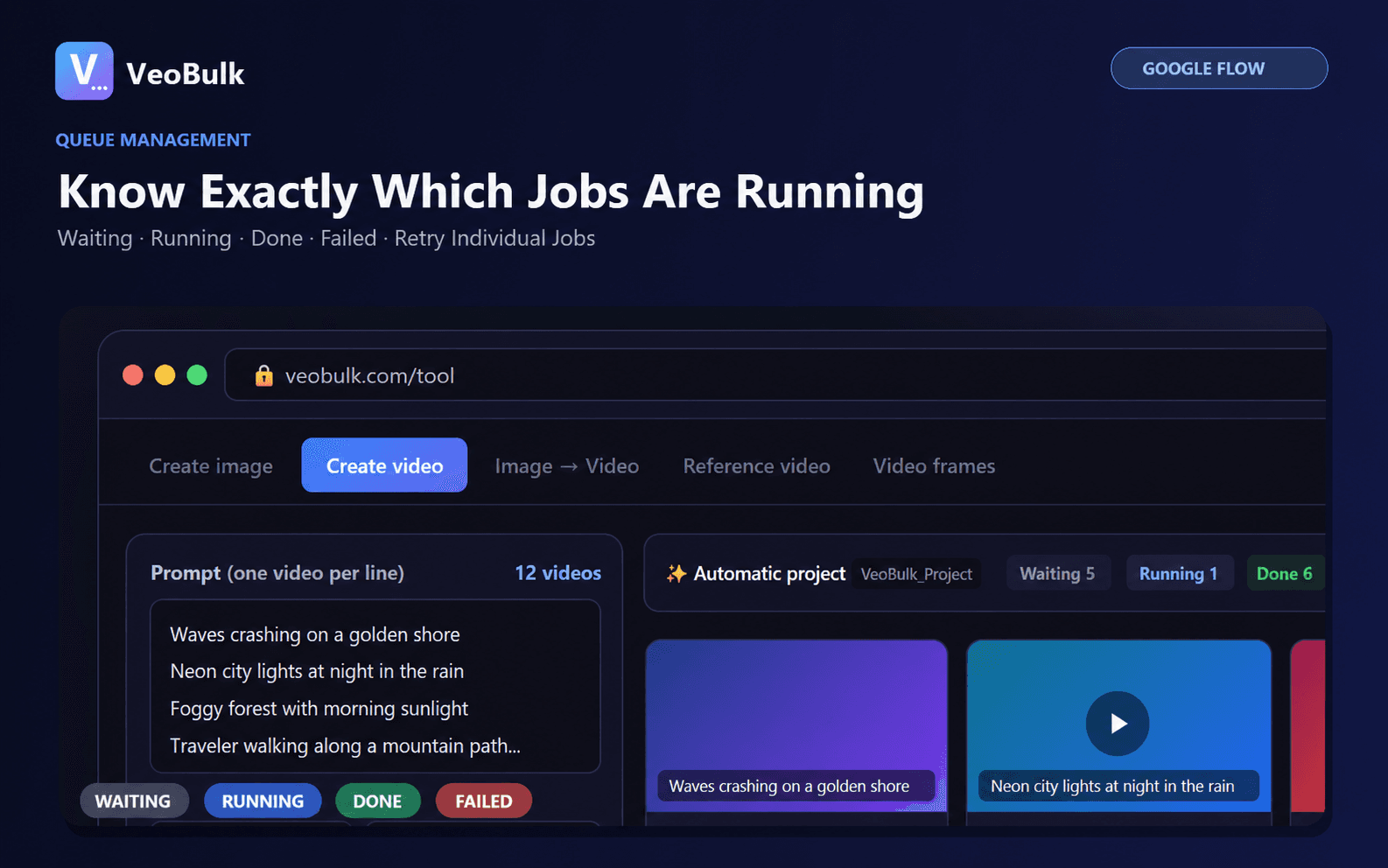
Prevent missing and duplicate files
Before retrying or downloading again, compare job state with the destination folder. A slow response can arrive after a timeout, so immediate resubmission can create duplicates.
At the end of a session, compare total prompts, completed jobs, and valid files. Investigate only the difference.
Checklist for multi-shot video projects
Use names such as 001-opening, 002-product-closeup, and 003-cta across prompts, video files, voice tracks, and the editing timeline. Store approved output separately from attempts.
Keep Chrome or the app open while downloads are active, verify free disk space, and prevent the computer from sleeping during a long batch.
Related articles
Frequently asked questions
Does VeoBulk automatically download every result?
VeoBulk supports downloads according to the workflow and user selection; Chrome remains in control of downloads.
How do I avoid filenames ending in (1) or (2)?
Use job or shot IDs and check existing output before downloading or retrying.
Can I organize downloads by project?
Yes. Separate folders by project and retain the shot list beside the media.
Ready to streamline your Google Flow workflow?
Install the VeoBulk Extension to manage prompts, queues, and results directly in Chrome.