How to Generate Videos in Bulk with Google Flow for Multi-Shot Projects
A finished video usually requires many shots, several attempts, and a clear review process. Instead of building every clip manually, you can standardize a shot list and let a controlled queue handle repetitive Google Flow actions.
When a bulk video workflow makes sense
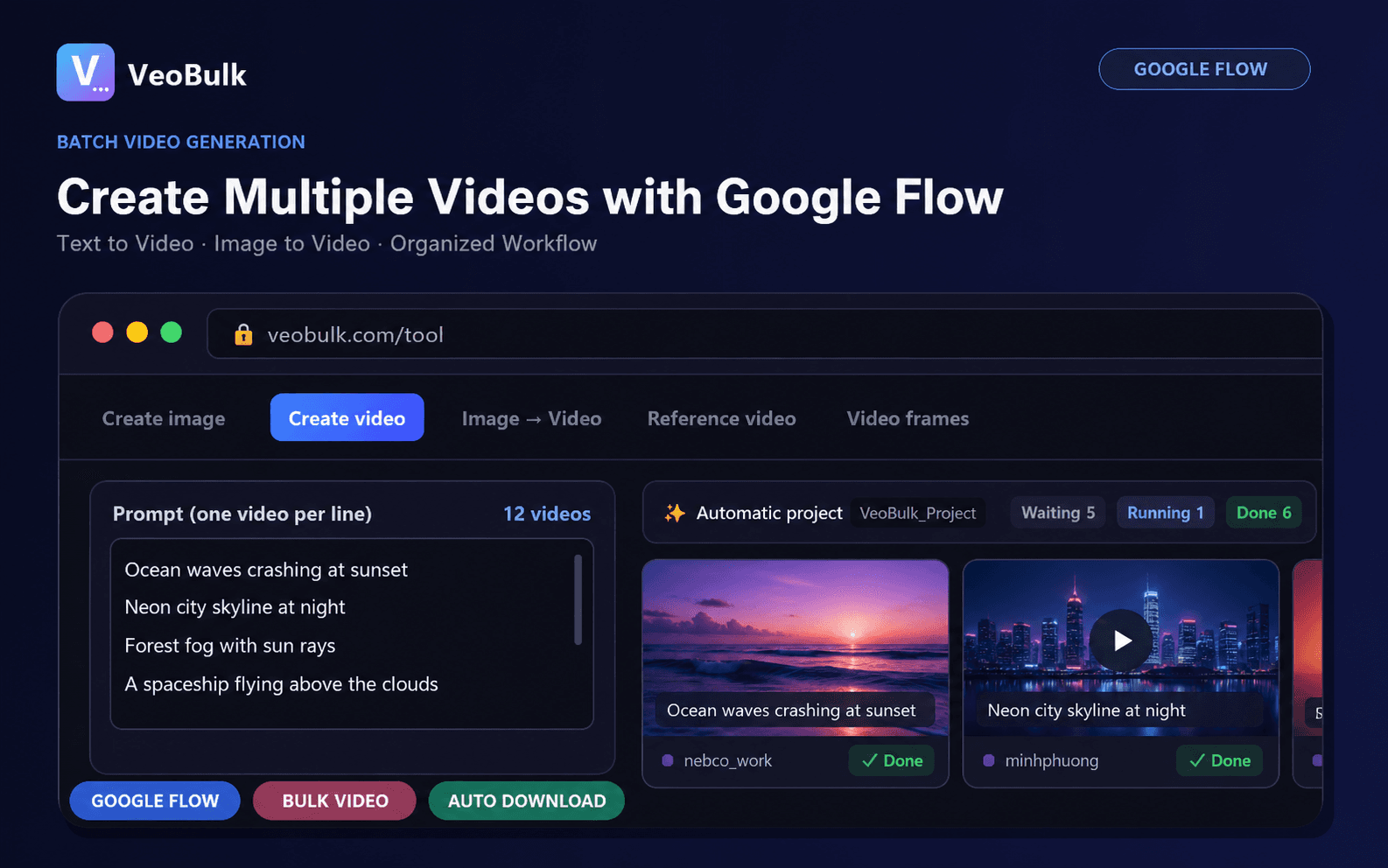
Batch workflows are useful for YouTube B-roll, multi-scene stories, ad variants, and motion tests from a collection of still images. The goal is not uncontrolled volume; it is a clear relationship between the script, each input prompt, and each output clip.
Build a shot list and prompt structure
Break the script into short shots. For each one, define the subject, action, camera movement, environment, lighting, and mood. Avoid packing several sequential actions into a short prompt because the model may merge or omit them.
For image-to-video, start with a clean, sharp source image and a composition that leaves room for the intended movement.
The production workflow
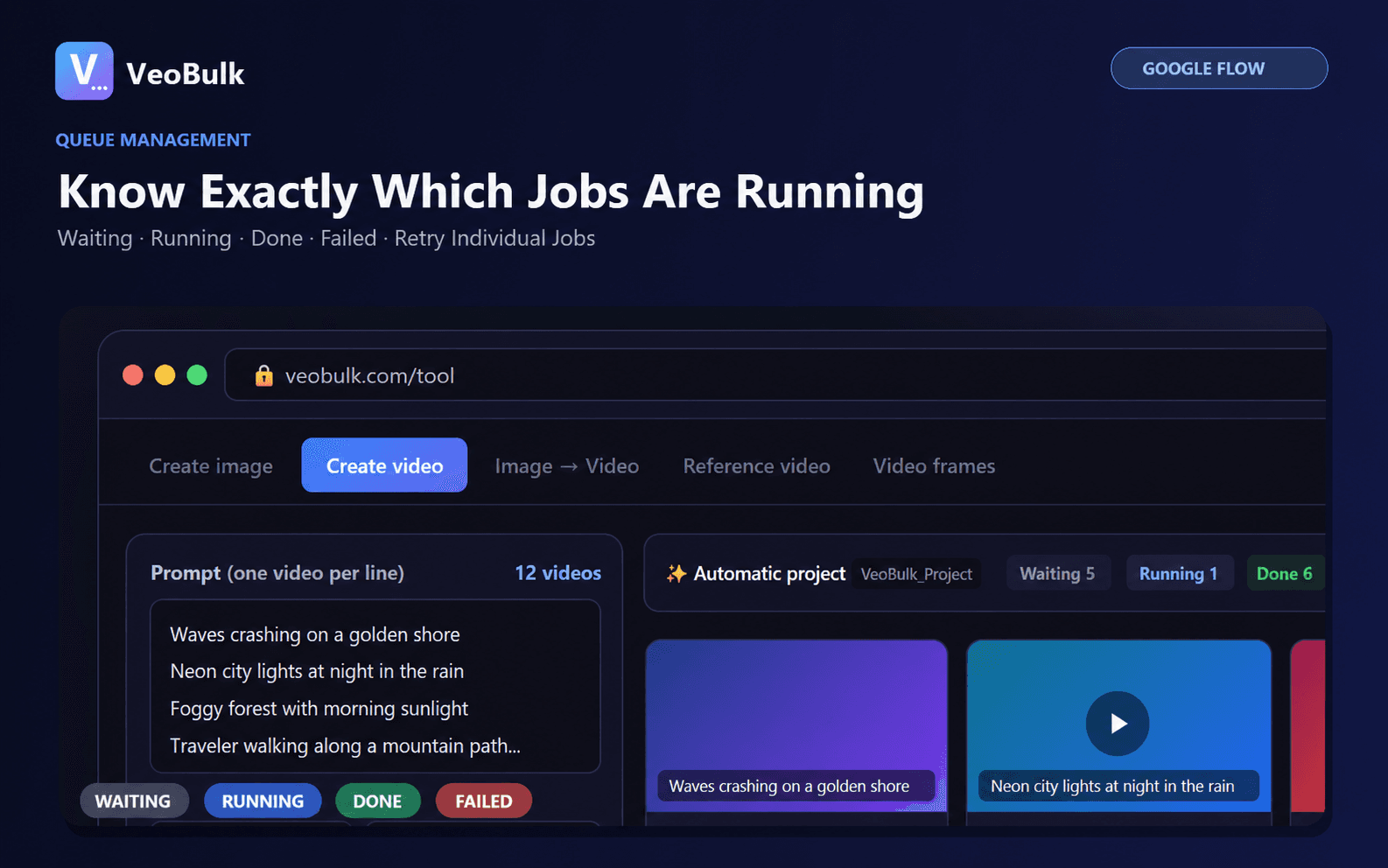
1. Open Google Flow and sign in with your account.
2. Select Text to Video or Image to Video in VeoBulk based on your inputs.
3. Import the prompt list and attach the correct reference image to each shot when required.
4. Choose a model, aspect ratio, and duration. Keep settings consistent across a sequence.
5. Test a small group to approve the visual direction, then start the full queue.
6. Retry only failed or weak shots, download the clips, and organize them in shot-list order.
Maintain visual and motion consistency
Repeat the core identity description for characters, wardrobe, and locations. Between adjacent shots, avoid changing too many variables at once. An approved still image can provide a more stable starting point for image-to-video sequences.
Use consistent camera language such as slow dolly in, static wide shot, or gentle pan. A shared vocabulary makes clips easier to combine in the edit.
Quality checks before editing
Review the opening and closing frames, anatomy, unexpected motion, and character continuity. Reject unusable clips before spending time on sound design, captions, or effects.
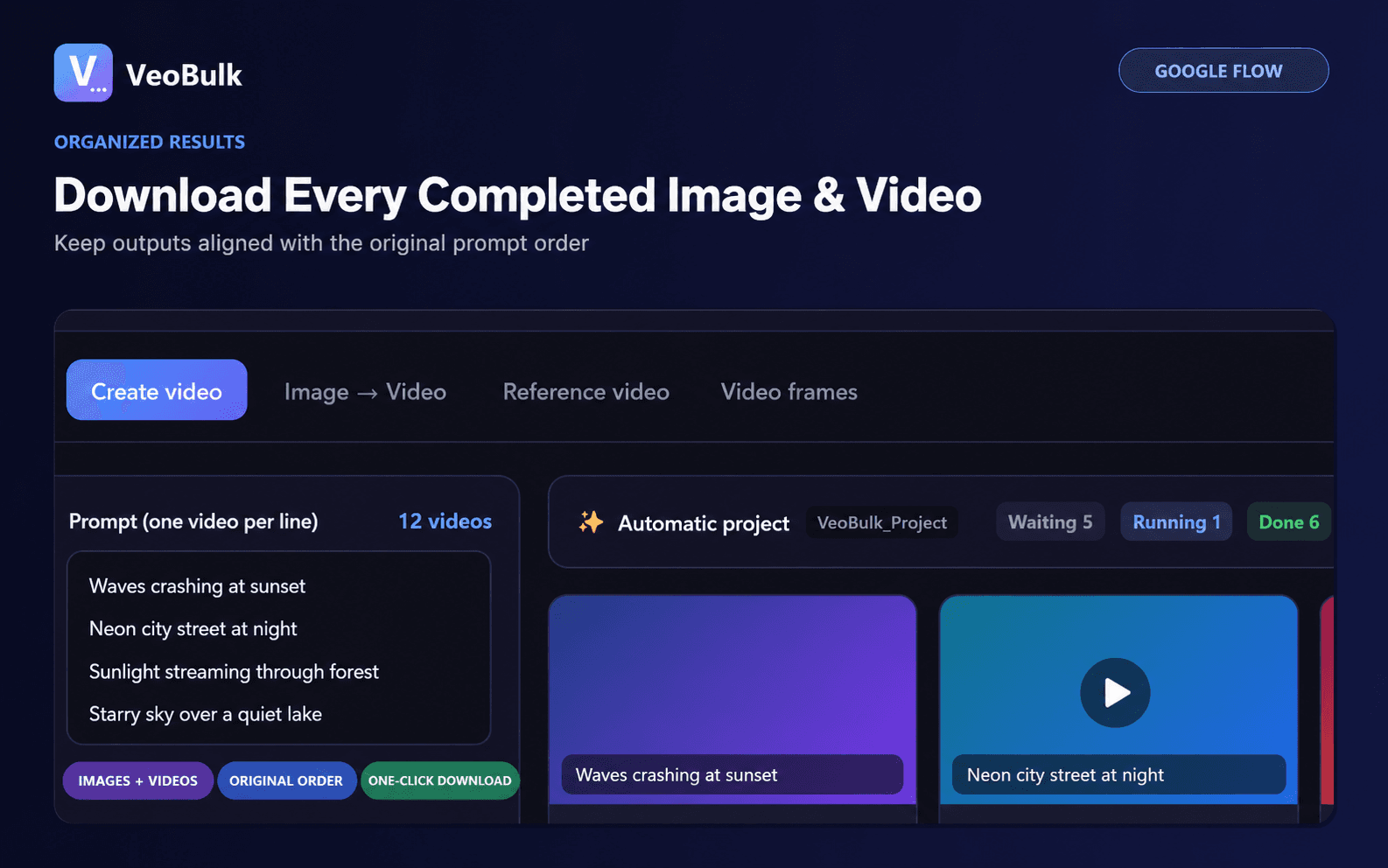
Because VeoBulk tracks jobs individually, you can focus retries on specific shots instead of restarting the entire batch.
Frequently asked questions
Does VeoBulk support image-to-video?
Yes, when the corresponding workflow is available to your Google Flow account.
Who provides the video generation credits?
Generation credits and limits belong to your Google account; VeoBulk provides workflow automation.
Can I retry one shot?
Yes. Each job has its own status so you can retry failed or unsatisfactory shots individually.
Ready to streamline your Google Flow workflow?
Install the VeoBulk Extension to manage prompts, queues, and results directly in Chrome.